Let’s say you have initially created a profile on the default relay and want to migrate away from it or want to migrate existing profile on a classic email server to a separate mailbox.
Update at least to 2.33 on all your devices: Help testing upcoming Delta Chat 2.34.* release!
Updating all your devices is required if you have multiple of them as only 2.33+ releases support using multiple relays, have an UI for it and can receive synchronization messages to update the list of relays. If you have not upgraded all your devices yet or do not have them around e.g. because you are traveling, then do not continue, postpone this for later.
Set “Show emails” setting to “All”, disable “Move automatically to DeltaChat Folder” and disable “Only Fetch from DeltaChat Folder” settings on all devices. These folder management settings exist only for so-called shared mailbox usage, meaning that you use Delta Chat together with other clients in the same inbox, and we don’t recommend using such setups, see “Can I use a classic email address with Delta Chat?” FAQ entry. If your profile currently uses a mailbox shared with other clients (e.g. webmail interface or Thunderbird) and where you expect to receive unencrypted messages, you can either 1) disable DeltaChat folder, add a new relay and switch to it, so you will eventually stop receiving chat messages on the first address 2) create entirely new profile with a different email address and use it for chatting, leaving the first profile for receiving unencrypted mails
If you don’t know which other relay you want to use, go to Chatmail: Relays and select one.
If you are on a phone, long-tap the QR code you find on the front page of the chatmail relay and click “copy link”.[1] If you have a desktop or laptop with a screen nearby you can open the chatmail relay page there instead so you will be able to scan it with your phone.
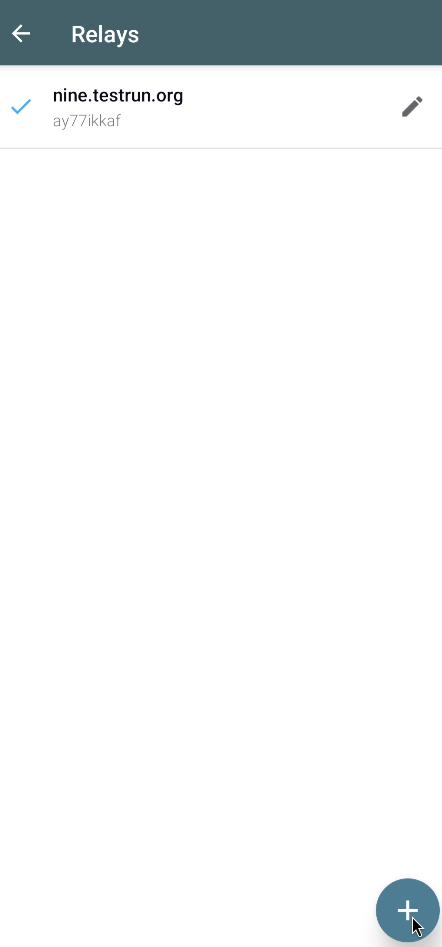
Go to Settings → Advanced → Relays. Click “+” there:
Do not remove the first relay yet. It is not going to be used for sending, but your contacts which are not yet aware that you have changed the relay still send messages there. As long as you do not delete this relay, Delta Chat will maintain connection to it and download messages from there. When in doubt, just keep it. You will also be able to easily switch back to it if just added relay has problems later.
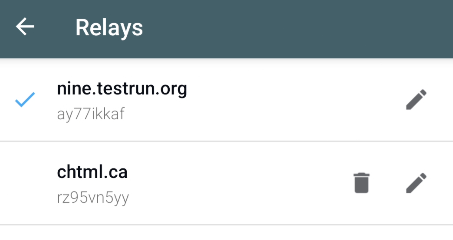
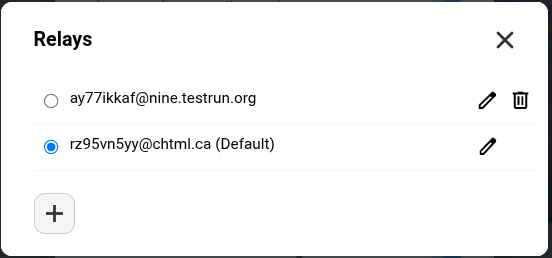
If you have other devices, e.g. Desktop, go to the same screen and check that relay is added there:
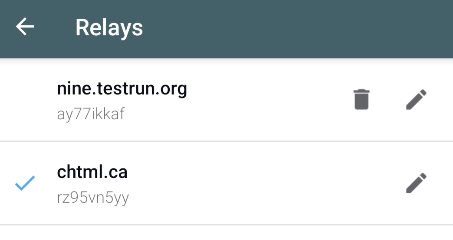
There is a known problem that default relay selection is not synchronized automatically in 2.33, so you will need to select the second relay as the default manually on all devices. This will be fixed in 2.34. Nothing bad will happen if you forget to do it, just your devices will be sending messages through different relays and this will be synchronized with the next sync message, e.g. when you pin some chat.
If you don’t know which relays to select: select the one that is not used by your contacts. This way if relay you selected turns out to be unreliable later or shuts down, you can still switch to the other relay and message all your contacts as it is unlikely their relay is down at the same time. If most of your contacts use the default nine.testrun.org, then just using any other relay is already an improvement.
If you want to add non-chatmail email server as a relay, you can do it, but this requires creating a dclogin:// URL. You can use webxdc for it. ↩︎
I was testing with 2.33.0 and wrote what worked for me. At least this way it works also for those who have installed 2.33.0 already and did not upgrade to 2.33.1.
2.33.0 was never released anywhere just for testing here in the forum only during 1 day, this is more confusing than what might help, if anything is better to just advice to install the latests 2.33.1 or superior before following that guide then keep it simple
also:
Go to the relay list again
I guess this is also outdated, the list is opened after scanning or clicking a link and the transport gets added
For me QR code scanner just did not close automatically. If relay list opens by itself then worst case user will exit and reenter it or something after reading “Go to the relay list again”.
This howto will need an update also when core bug with default transport sync is fixed. For now will just add version to the title so it is clear that it might be somewhat outdated when 2.34 is out. End goal of this is anyway that users should not need a guide to manage relays.
mvbox_move is a setting called “Move automatically to DeltaChat folder” (“Autom. Verschieben in den DeltaChat-Ordner”). It should be disabled to use multiple transports. Same for “Only Fetch from DeltaChat Folder”.
You can already do this, but I am not sure if and when this ability will be added to the UIs. If your inboxes receive non-chat messages, there is no way to tell in the UI which inbox the message comes from and which address you should use to send the reply, currently it will just be sent from the selected default/primary relay and in the future we may want to send automatically from one of the relays. This is likely not what you want if you use the same addresses for e.g. replying to unencrypted mails.
If you have created dedicated addresses for chatting on non-chatmail servers, made sure you do not use the same mailboxes for other email clients and for other Delta Chat profiles, and want to use such mailboxes in a multi-relay setup, you can do this with DCLOGIN QR codes:
If the primary relay shuts down, does this mean the migration will fail because the old address can no longer receive messages? Or if rather contacts will still be updated when sending messages from the new address, then is it preferable to add several backup relays in case some shut down?
If all your relays have failed, then your devices have no way to communicate with each other and any relay you add on one device will not be added to other devices. You can still recover from it by finishing the migration on one device, then resetup your other devices using “add second device”, as if they are new.
Having two or three relays is good enough, unlikely they will all fail at once, no need to add more than that to a single profile.
Thank you, though I think I was not clear enough, I’m not concerned about multi-device but wanted to know for keeping contact with other people who I am messaging. If I have 2 relays set up, but the primary one goes down without warning so I don’t have a period of time to switch to the other one, it sounded like a friend would still be sending messages to the primary address which no longer works. If I then send a message to a friend from my backup(now primary) address, will my contact still be updated in their book, as long as I had added the relay previously?
Yes, currently your contact will be still sending messages to your primary relay, so you will miss some messages, but as soon as you send your contact a message from another working relay, they will update your address and start sending to your new primary relay.
I’m trying to do this and I still get a message after disabling “move automatically to deltachat folder”, as to add another relay I also need to set “show classic emails” to all and I really do not want to do that.
The context: I set up DeltaChat many years ago with my own email address (shared with unencrypted emails) and GPG key. I would like to use a chatmail server without creating a new email address to keep my chat history. I thought simply adding a relay and making it default would work. Why do I need to see all my classic emails in DeltaChat? I’m afraid of using that setting and polluting the DeltaChat interface with all my emails.
See my post at Setting up relays means getting spam? - #5 by link2xt , you can leave this setting at any value with Delta Chat 2.41.0+. Wait for the new release, then you will be able to add chatmail relay and switch to it without changing this setting.